
|
Benchmark Report Results |
|
Purpose |
Benchmark Count Results
|
Functionality |
Report Status
This section will display the status of the most recent count and list report. If a report is 'DONE', the report type name will be a hyperlink.
Export Options

The Export section allows the user to select how to output the report. Choosing Export as Text will display the results in a tab-delimited list. Choosing Export as a Spreadsheet will display the results in MS Excel.
Choosing Display as a PDF will display the results in PDF format, and you can then use the PDF toolbar to print the report. Note: if you press the Back button, you may receive a "Page has Expired" message. As instructed on the screen, you can press your "Refresh" button then click on "Retry" to return to the Report Status screen.
Large Reports
There is no limit to the size of the report when you choose Export as Text. Export as a Spreadsheet has a limit of 65,535 lines, and an informational message "file not loaded completely" will be displayed to indicate that part of the report was truncated. Display as a PDF has a limit of about 5,000 lines (119 pages); if you click on the Display as a PDF link and the report is larger, a red Error Report banner will be displayed.
Report Information

The Report Information section identifies when the report was run, by whom, and for which organization.
Report Filters
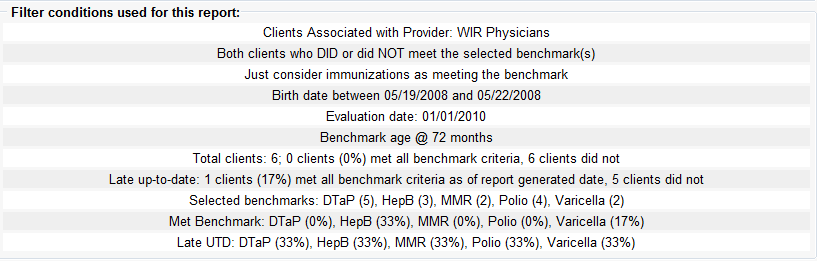
The Report Filters section identifies for which organization the report was run, what client filter was used, the client age range, the evaluation date for the report, the benchmark age, and the selected benchmarks. Total clients, up-to-date by benchmark, and late up-to-date statistics for clients in the cohort are also shown.
Benchmark List Results
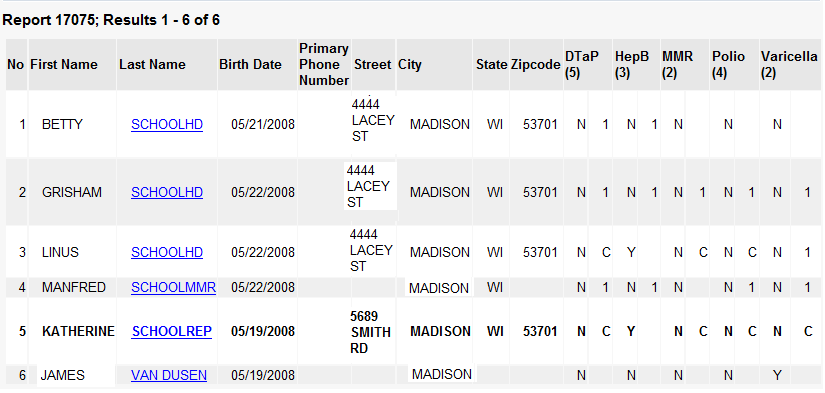
The Benchmark List Results displays the report output in a summary table. This screen will appear different based upon the benchmark you are running. For example, the columns on the right displaying the vaccines will not always be the same. Your benchmark
may include one vaccine or another different combination. Adolescent and Adult benchmarks also show an 'Age' column after the Birth Date column, showing the client's age as of the Evaluation Date as a whole number. Click on the client's
last name, which is underlined and in blue text, to access the client's immunization history. By default, 250 rows are visible at a time. If you have more than 250 clients listed, click on the 'Next 250 >>'
link.
Note: Only clients not up to date for at least one vaccine benchmark will display in the list if the "Clients who did NOT meet the benchmark" option is chosen.
If the "Clients who did NOT meet the benchmark" or "All clients" option is chosen, the late up-to-date status will show to the right of each "N". A value of "C" means the client is late up-to-date. If the client is not late up-to-date but at least one immunization has been given, the number of immunizations is shown. The status to the right of the "N" will be left blank if no immunizations have been given. Note that for late up-to-date, the evaluation date and benchmark age are not considered; the question is, "Does the client still need immunizations today to meet the benchmark number of immunizations?"
Note: An Authorized Override applied to the client's immunization history screen will also reflect as an 'N C'. When accompanied by the note "Complete: State WI Medical Director" on the client's immunization history screen for a specific vaccine group, this indicates the vaccine series is considered Complete for the client.
If the 'Assess Clients with Sufficient Refusal History/Contraindications as Covered' option is chosen, an 'R' value indicates that the client met by refusal. A value of 'X' indicates that the client is contraindicated for that vaccine group, and is counted as 'met by contraindication'.